
Record Quality
Learn how to assess transaction completeness and consistency, then investigate possible duplicates without mistaking repeated purchases for import errors.
Read the conceptCompare CSV columns, QIF labeled records, and structured OFX or QFX data. Learn how to match imported dates, payees, amounts, and categories before reviewing the resulting transactions in desktop HomeBank.
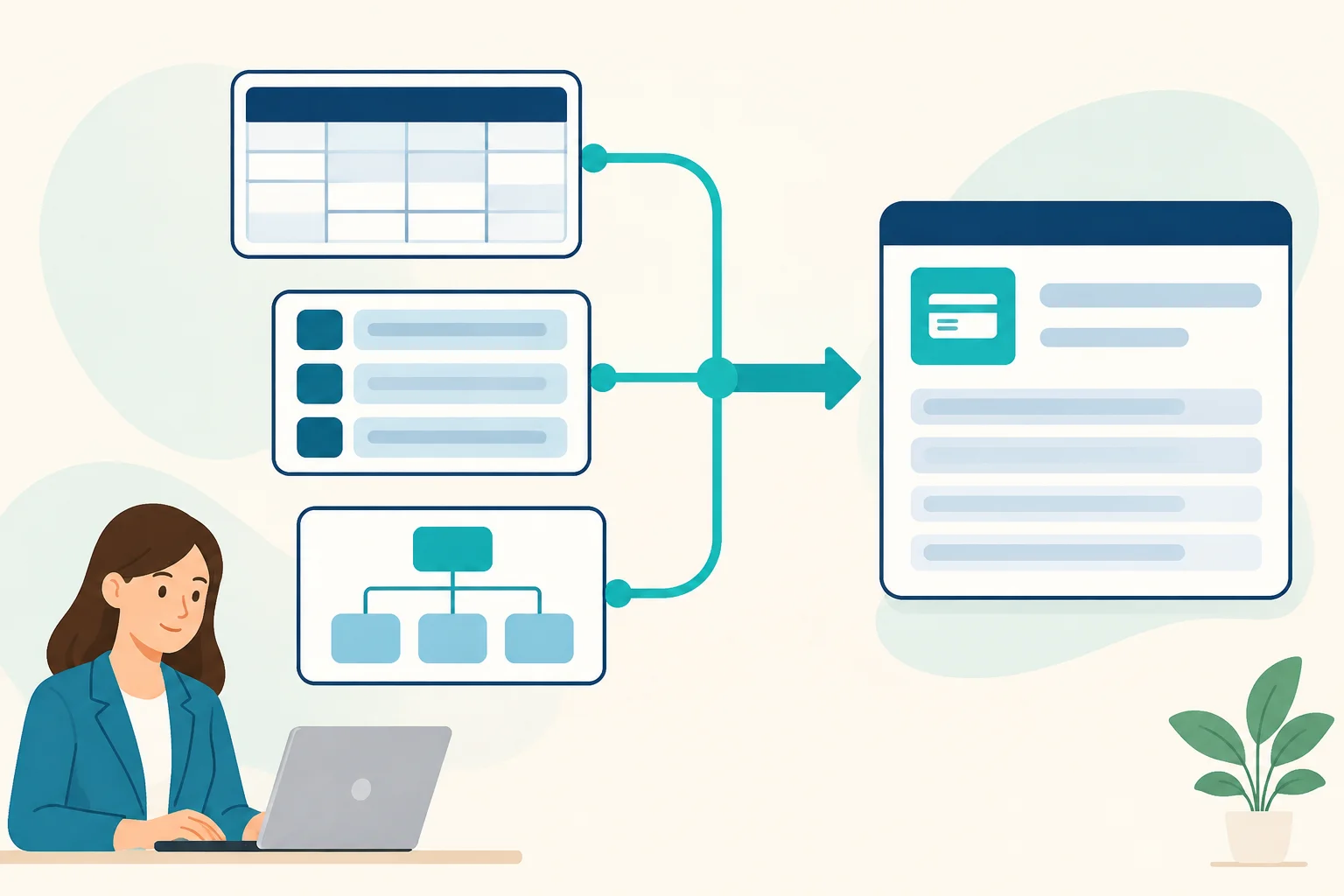
An import file carries transaction facts in a format chosen by the bank or source application. HomeBank supports CSV, QIF, OFX, and QFX, but each format presents those facts differently, so a column or record must be interpreted before it can be classified reliably.
CSV usually places one transaction on each row, with values separated into columns. QIF uses labeled records, while OFX and QFX represent data in a structured format. A date may be easy to spot in all four, yet its position and labeling vary. Payee, amount, and any category information need the same careful reading.
Start by identifying the boundaries between fields and the meaning of each value. These fictional excerpts show the difference in shape; they are teaching examples, not import files.
Do not assume that a field is present just because the format can carry it. Review the source data and map only values whose meaning is clear.
Field mapping connects the source representation to the transaction details HomeBank will use. Check that the date column contains dates, the payee value names the counterparty, and the amount retains its direction and decimal value. A misplaced column can turn a sensible-looking row into a misleading record.
Import tools can flag transactions that appear potentially duplicated, which gives you a useful review queue rather than a final verdict. Compare dates, amounts, payees, account context, and references before deciding whether two records describe the same purchase.
For example, two fictional City Books entries on 2026-04-11 both show an amount of −$24.00 and the reference DEMO-BOOK. One is described as a book purchase and the other as a second imported copy, so the matching details make them candidates for review. By contrast, two Corner Cafe purchases of −$6.50 on 2026-04-10, one in the morning and one in the afternoon, are separate visits. Similar values alone do not establish duplication.
Keep the source file available during review. That comparison helps resolve ambiguous columns, spot repeated imports, and preserve legitimate transactions that happen to share details.
Learn how to assess transaction completeness and consistency, then investigate possible duplicates without mistaking repeated purchases for import errors.
Read the concept
Explore fictional transaction records and their fields to see how imported dates, payees, amounts, and categories fit together.
Read the concept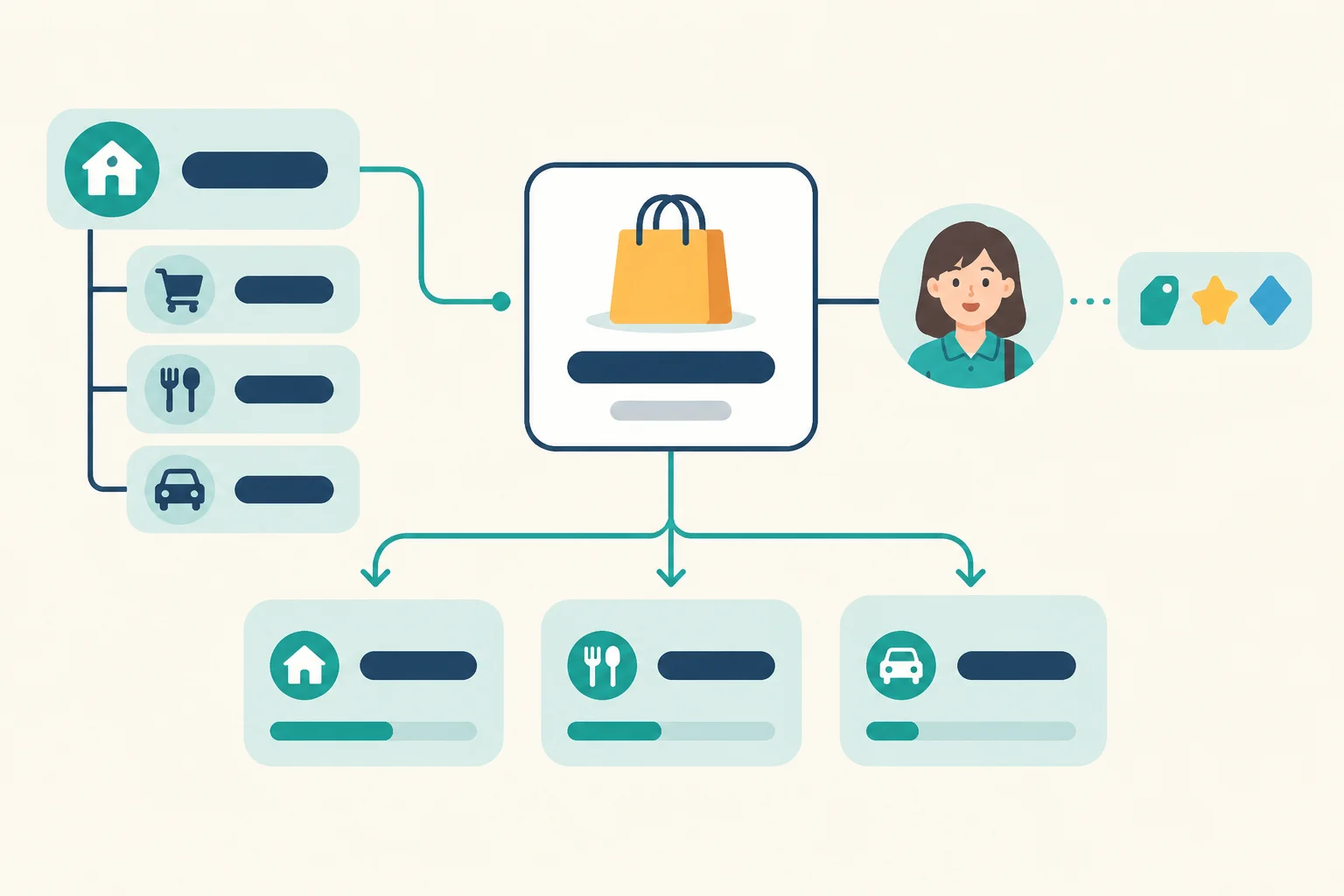
See how categories, payee identity, tags, and split allocations describe different aspects of a transaction after import.
Read the conceptHomeBank supports CSV, QIF, OFX, and QFX imports, with field matching and review steps that help keep imported records organized. Continue with the desktop guide to connect those steps to transaction classification.