Map fields before importing
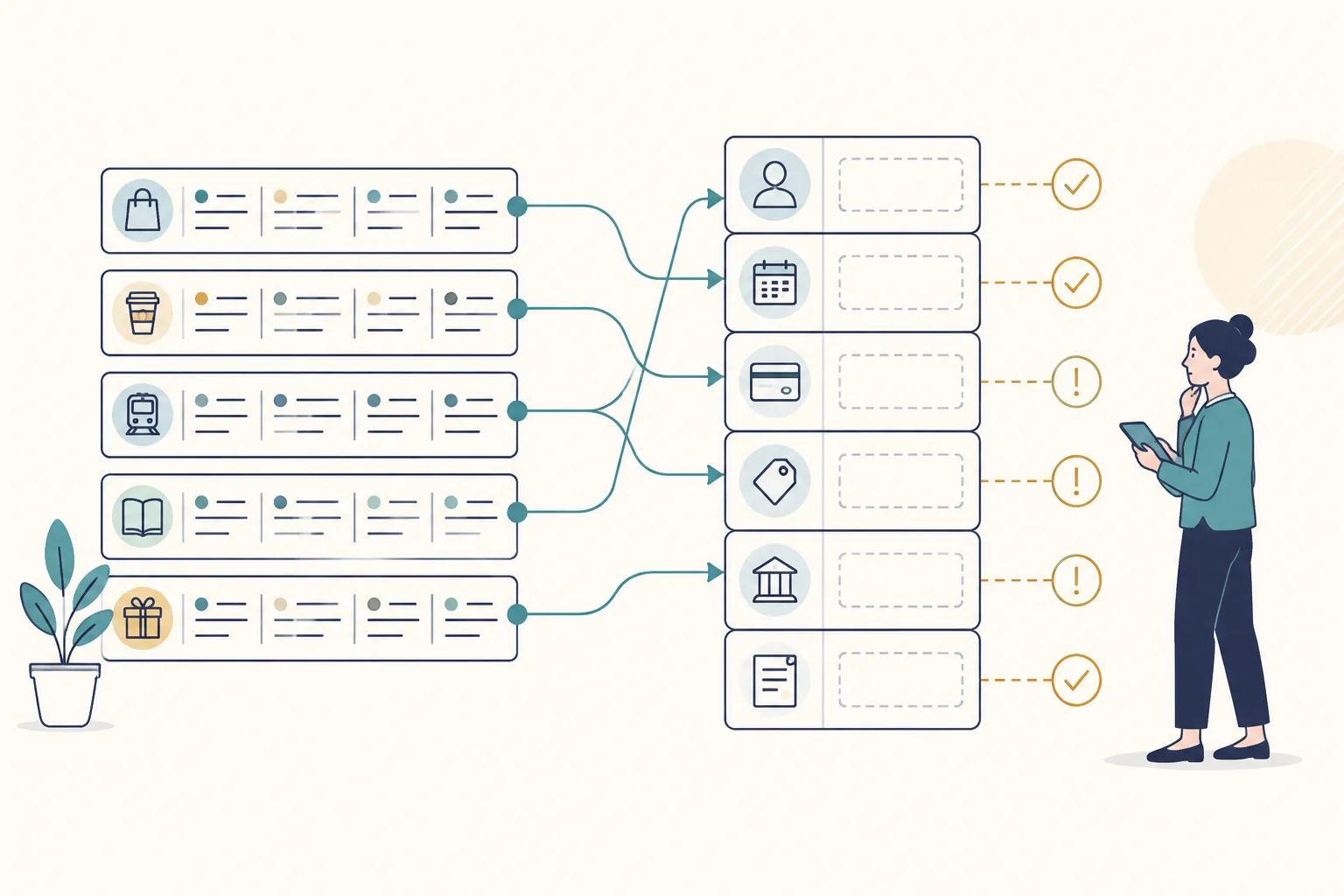
Import mapping connects columns or fields in an incoming file to the corresponding transaction details in desktop HomeBank. Check what each value means before accepting the records: a correct date, amount, payee and memo make later classification and review far more dependable.
Understand the file formats
CSV presents information in rows and columns, so its headings and column order need close attention. QIF, OFX and QFX are other supported desktop import formats; their structures differ, and a field that looks familiar should still be checked for its actual meaning. HomeBank also supports detection of potentially duplicated transactions, which flags records for assessment rather than establishing that two entries are the same purchase.
Check each mapped field
Start with the source file’s headers or record details. Match the transaction date to the date field, confirm whether the amount represents money in or out, and inspect the payee and memo separately. Review a few varied rows, including a deposit or a record with a useful reference, before importing the full file. A shifted column can turn a merchant name into a memo or place an amount in the wrong field while still producing a record that looks superficially complete.
- Read the source labels. Identify the purpose and format of each column or field.
- Compare representative rows. Check dates, signs, payees and descriptions against the original file.
- Review potential matches. Assess flagged records alongside surrounding transactions before deciding what to keep.
Review duplicates in context
Consider this fictional import: R05 and R06 both show City Books, April 11, an outflow of $24.00 and the reference DEMO-BOOK. R06 is described as a second imported copy, so the matching details warrant a duplicate check. The same clues are not proof on their own: two genuine purchases can occur at the same merchant for the same amount on the same day.
R03 and R04 show Corner Cafe, April 10, and an outflow of $6.50 each. Their morning and afternoon notes indicate separate visits, so identical date, payee and amount do not make them duplicates. Use the memo, reference, account and nearby activity to understand each record. Keep the original source available while reviewing, and avoid removing a transaction solely because a detection tool found matching details.
Confirm the imported records
After mapping and duplicate review, inspect the resulting entries in the account register. Check that the transaction count and signs make sense, that descriptions remain attached to the right records, and that potential duplicates have a documented reason for the decision. This example is fictional and illustrates a review method; it does not represent an actual bank statement or prescribe a universal duplicate rule.
This lesson covers the desktop personal-finance program HomeBank. HomeBank also names a separate Apple-device app; the desktop import formats and review details discussed here should not be assumed to describe that app. For current desktop product information, visit the official HomeBank source.